
Documentation Index

Fetch the complete documentation index at: https://docs.sacra.com/llms.txt

Use this file to discover all available pages before exploring further.

Sacra’s MCP server lets AI agents call Sacra tools directly inside a conversation. This guide walks through connecting to the server, understanding the available tools, and seeing how an agent chains them together to answer a real question like “What’s Kraken’s latest revenue?”

Connect to Sacra MCP

There are three ways to connect. Pick whichever fits your setup — the tools and data are the same regardless of client.

Claude

  1. Go to Customize > Connectors > + and click Add custom connector.
  2. Enter:
    • Name: Sacra Private Markets Research
    • Remote MCP Server URL: https://mcp.sacra.com/mcp
  3. Click Add, sign in to Sacra, and accept permissions.

ChatGPT

  1. Go to Advanced settings in Apps Settings and enable Developer Mode.
  2. Click Create app and enter:
    • Name: Sacra
    • Description: Private company data & research on growth & pre-IPO startups
    • MCP Server URL: https://mcp.sacra.com/openai/mcp
    • Authentication: OAuth
  3. Sign in to Sacra and click Allow.

Server-side (any agent SDK)

Connect from your own backend with a Sacra API key. This example uses the OpenAI Agents SDK, but any SDK that supports Streamable HTTP MCP works.
import { MCPServerStreamableHttp } from "@openai/agents";

const mcpServer = new MCPServerStreamableHttp({
  name: "sacra_research_tools",
  url: "https://mcp.sacra.com/mcp",
  requestInit: {
    headers: {
      Authorization: `Token ${process.env.SACRA_API_KEY}`,
    },
  },
});
Create an API key in your Organization Settings. See the server-side MCP page for a full working example.
Never expose your API key in client-side code. For server-side integrations, store it in a secure environment variable or secret manager.

Available tools

The MCP server exposes eight tools:
ToolDescriptionKey parameters
searchFull-text search across Sacra’s documents and companiesquery
get_all_company_domainsReturns every company Sacra tracks with their domains
get_company_profileFetches a company’s full profile (financials, datasets, documents)company_domain
get_revenue_signalsCitation-backed revenue metrics from Sacra Signals Revenuecompany_domain
get_funding_rounds_for_companyLists funding rounds for a companycompany_domain
get_news_for_companyRecent news items about a companycompany_domain
get_document_contentReturns the full text of a Sacra documentdocument_slug_or_id
get_category_itemsReturns related companies and documents for a categorycategory_slug
Most workflows start with search or get_all_company_domains to find the right entity, then drill in with get_company_profile, get_revenue_signals, or get_funding_rounds_for_company depending on what you need.

Walkthrough: “What’s Kraken’s latest revenue?”

Here’s what happens when you ask this question in Claude, ChatGPT, or through a programmatic agent. The tool chain is the same regardless of client — only the UI around it differs.

Step 1: The agent resolves the company

The agent needs to find Kraken in Sacra’s database. It calls get_company_profile:
{
  "tool": "get_company_profile",
  "parameters": { "company_domain": "kraken.com" }
}
This returns the full company object including financials, company_datasets, documents, and metadata. The financials array contains headline numbers:
{
  "financials": [
    { "name": "latest_estimated_revenue", "value": 2204000000, "date": "2025-12-31" },
    { "name": "latest_estimated_valuation", "value": 20000000000, "date": "2025-11-19" },
    { "name": "total_estimated_funding", "value": 832000000, "date": "2025-11-19" }
  ]
}
For a simple “latest revenue” question, the agent can answer directly from financials: $2.2B as of year-end 2025.

Step 2 (optional): The agent gets more detail

If you ask a follow-up like “How has that changed over time?” or if the agent wants to provide more context, it already has the company_datasets array from the same profile response. The revenue dataset gives the full time series:
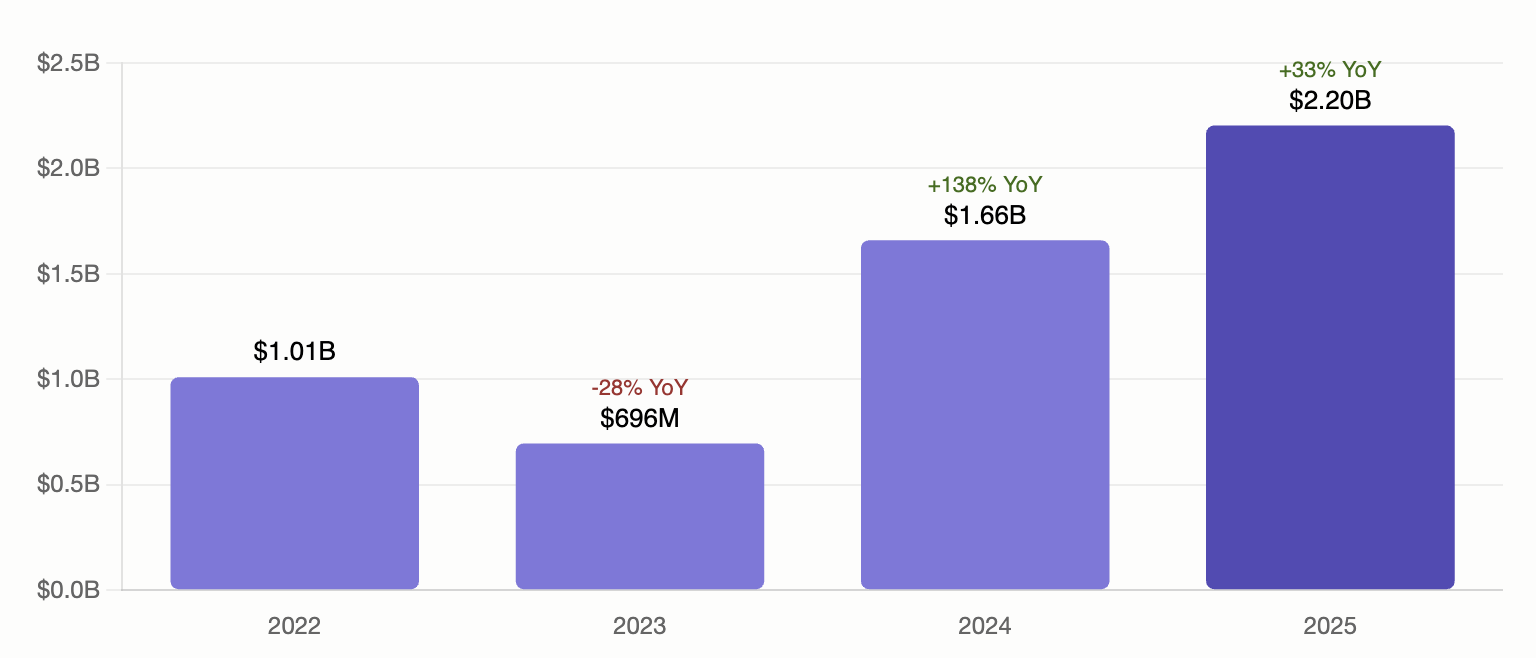
{
  "data_type": "Revenue",
  "data": [
    { "x": "2022-12-31T00:00:00.000Z", "y": 1010000000, "type": "historical" },
    { "x": "2023-12-31T00:00:00.000Z", "y": 696300000, "type": "historical" },
    { "x": "2024-12-31T00:00:00.000Z", "y": 1658800000, "type": "historical" },
    { "x": "2025-12-31T00:00:00.000Z", "y": 2204000000, "type": "historical" }
  ]
}
The agent can now plot the change from 1.01Bin2022to1.01B in 2022 to 2.2B in 2025.
Kraken revenue time series from 2022 to 2025

Step 3 (optional): The agent gets citation-backed metrics

If you want sourced data, the agent calls get_revenue_signals:
{
  "tool": "get_revenue_signals",
  "parameters": { "company_domain": "kraken.com" }
}
This returns granular metric observations with citations — URLs and quotes backing each revenue figure. The agent can include these in its response so you know exactly where each number comes from.
The agent decides which tools to call based on your question. A simple “What’s the revenue?” may only need get_company_profile. Asking “What’s the sourced revenue with citations?” will trigger get_revenue_signals as well.

Walkthrough: “Write me a brief on Kraken”

A broader question like this triggers a multi-tool chain. Here’s a typical sequence:

1. Company profile

{ "tool": "get_company_profile", "parameters": { "company_domain": "kraken.com" } }
The agent gets the full profile: description, founding year, key people, headquarters, financials, datasets, categories, and a list of Sacra documents about Kraken.

2. Funding rounds

{ "tool": "get_funding_rounds_for_company", "parameters": { "company_domain": "kraken.com" } }
Returns each round with dates, amounts raised, valuations, and round types — Seed in 2013, Series A in 2014, through to the Series C and Growth rounds in 2025.

3. Recent news

{ "tool": "get_news_for_company", "parameters": { "company_domain": "kraken.com" } }
Returns recent news items so the brief includes current developments.

4. Deep-dive into a document

The company profile includes a documents array. If the agent spots a relevant report — say “Kraken at $1.5B up 128% YoY” — it can pull the full text:
{ "tool": "get_document_content", "parameters": { "slug": "kraken-at-1-5b-up-128-yoy" } }
This gives the agent detailed analysis to draw from when writing the brief.

The result

The agent composes all four tool responses into a structured brief: business overview, key people, funding history, revenue trajectory, recent developments, and an investor takeaway — all grounded in Sacra data.

Tips for effective prompting

Activating the connector

In ChatGPT, say “Use Sacra” to ensure ChatGPT routes your question through the Sacra connector. In Claude, the connector activates automatically when your question matches the tool descriptions, but you can say “Use the Sacra MCP” to be explicit.

Be specific about what you want

The more specific your question, the more targeted the tool chain:
PromptTools the agent typically calls
”What’s Kraken’s revenue?”get_company_profile
”What’s Kraken’s revenue with sources?”get_company_profileget_revenue_signals
”Write a brief on Kraken”get_company_profileget_funding_rounds_for_companyget_news_for_companyget_document_content
”What crypto exchanges does Sacra cover?”get_category_items with crypto-exchange
”Find companies related to stablecoins”search

Chain follow-up questions

After an initial question, the agent retains context. You can follow up naturally:
  • “Now compare that to Coinbase”
  • “What funding rounds led to that valuation?”
  • “Pull the full report on their revenue growth”
Each follow-up triggers additional tool calls without needing to re-fetch earlier data.

Ask for sources

If you want to know where a number comes from, ask explicitly: “What’s Kraken’s revenue and where does that number come from?” This prompts the agent to call get_revenue_signals for citation-backed data.

Next steps